Block coding
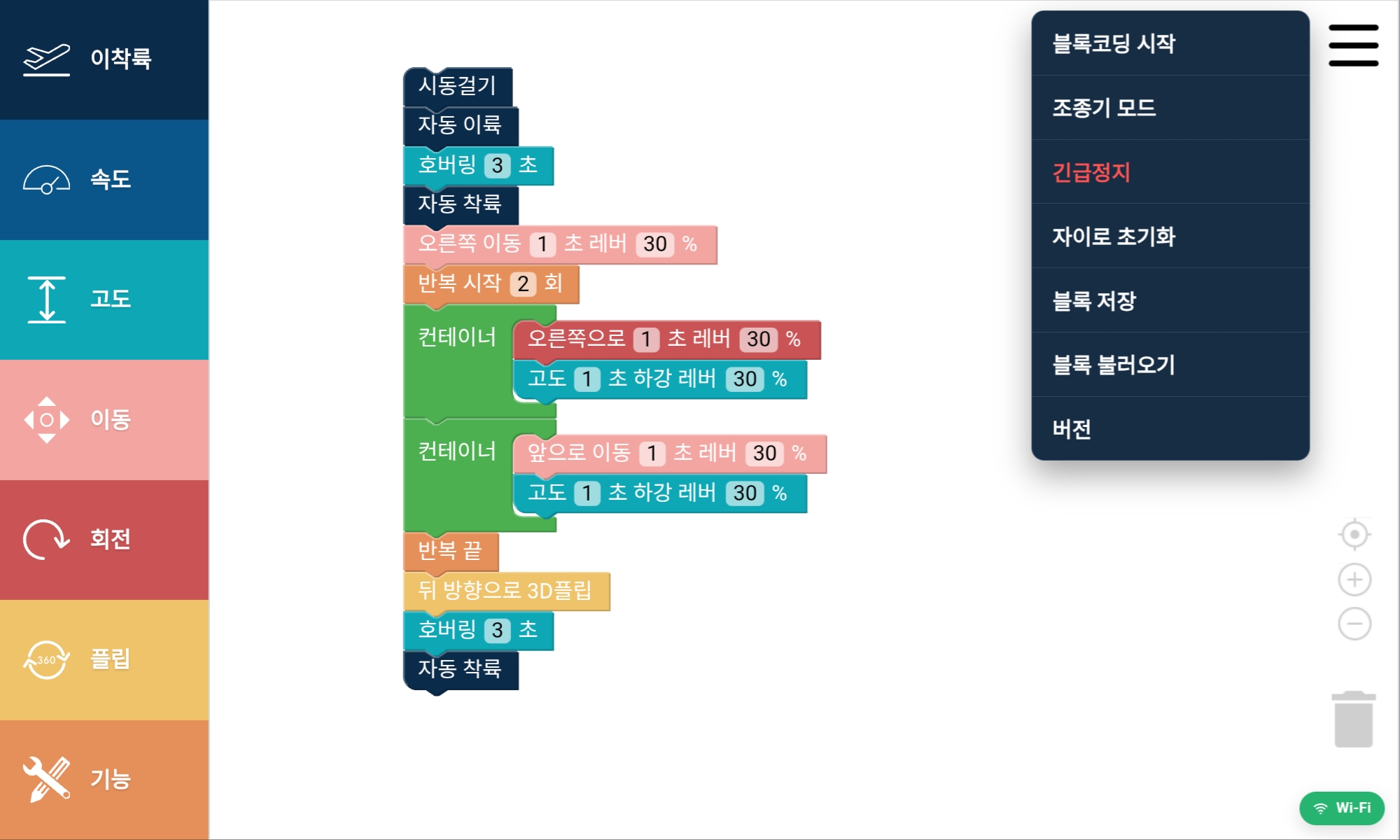
Assemble the same blocks as the real app: takeoff/landing, speed, altitude, movement, rotation, flip, repeat, camera, LED, and more.

AIRGO CODING CENTER
Try the AIRGO block coding app and Python IDE right in your browser. Assemble blocks or run Python code and the drone moves in the 3D simulator.
A web 3D simulation experience that does not connect to a real drone.
 3D simulator
EXPERIENCE
Use the AIRGO block coding app sidebar, block categories, and workspace right in the browser. Connect blocks and run them to see a 3D drone built from the product STEP model fly in the simulator.
PYTHON CODING
Write and run Python code in an IDE-style editor. The command prompt shows the same serial commands as the real SYUBEA drone controller, and the drone flies in the 3D simulator.
This is a web simulation. To control a real drone, use the SYUBEA drone controller in Resources. Resources
 WIZWING EDU APP
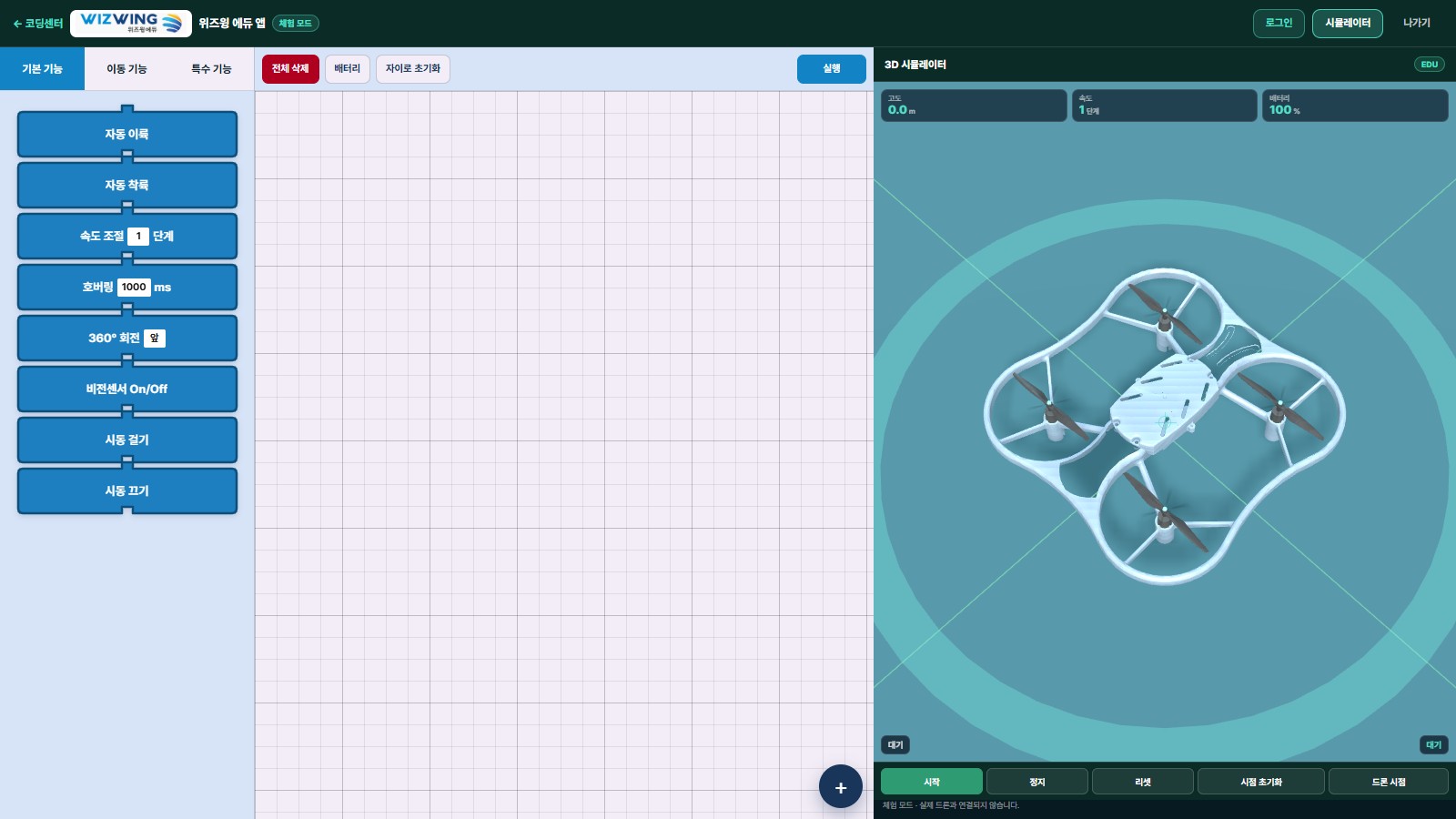
We recreated the WIZWING EDU three-tab block coding app for the web. Assemble basic, simultaneous, and special blocks and run them to see the EDU Butterfly 3D drone fly in the simulator.
Programs are saved in the browser; this is an experience mode that does not connect to a real drone.
FEATURES
Assemble the same blocks as the real app: takeoff/landing, speed, altitude, movement, rotation, flip, repeat, camera, LED, and more.
Write Python code in an IDE-style editor with syntax checking and an execution command prompt.
A 3D drone converted from the AIRGO product STEP model moves in a free-flight space. Switch between follow view and drone view (FPV).
Load block/Python examples and run them immediately, and save code in the browser or as a .py file.
HOW TO
Drag the blocks you need from the left categories into the workspace.
Connect blocks in order to create the drone flight sequence.
Press Start Block Coding and the virtual drone moves in the 3D simulator.
EXAMPLES
Load an example and run it right away.
Take off → move forward → land
Start with this example BeginnerTake off → forward/right/back/left → land
Start with this example IntermediateRun the same action multiple times with a repeat block
Start with this example IntermediateTake off → hover → forward flip → land
Start with this examplePYTHON EXAMPLES
Load an example and run it right away.
Take off → forward → land
Start with this example IntermediateSquare flight with a for loop
Start with this example Intermediatedef functions and cm/angle helpers
Start with this example BeginnerBattery check, LED, and gyro
Start with this example IntermediateRun all commands from the real-device demo (REV.0A) menu
Start with this exampleFAQ
We can advise you on coding education drones, the block coding app, and the Coding Center experience.